





The fundamentals of custom app development for Microsoft Teams


June 17, 2026 11 min read 540 views
What extended capabilities can mean for your teams.
Microsoft Teams has become an integral part of the modern enterprise ecosystem. With its user base exceeding 320 million monthly active users, the platform’s value extends far beyond simple communication. In particular, it enables organizations to develop custom applications for their workflows in Microsoft 365. In this article, we’ll discuss how employees can create and use Teams apps, in this way, adjusting the platform to their needs and goals.
What is app development within Microsoft Teams?
App development within Microsoft Teams is the process of creating new applications designed to work within the Teams environment. These apps can range from simple tools for personal use, like a task list, to more complex apps for collaboration, like project management solutions, or custom bots. The goal of custom app development in Microsoft Teams is to extend the platform’s functionality and make it more useful for specific tasks or workflows. As Harvard Business Review highlights, employees want to use more personalized software, so bringing tailored Teams solutions on board is a valuable option for enterprises.
Explore how Avenga ensured a successful migration to Microsoft 365 for a global manufacturing company.
Core building blocks of Microsoft Teams platform
The foundation of Teams development is built on five core capabilities: tabs, bots, adaptive cards, task modules, and message extensions. These components define how functionality is extended inside Teams, ranging from embedded web pages to AI-powered bots that automate tasks and support workflows in real time. Here is a closer look at each of them:
| Capability | Purpose | Example |
| Tabs | Webpages that provide access to specific information or tools. | A project management tab that displays project timelines, tasks, and status updates. |
| Bots | Azure-based conversational interfaces that answer questions, guide users through processes, and more. | A human resources bot that allows employees to request time off, update benefits information, or submit questions about payroll. |
| Adaptive cards | JSON snippets that present information in a visually appealing and interactive way. | A notification card that displays a flight itinerary with options to check in or change seats. |
| Task modules | Pop-up windows within Teams that allow users to complete tasks or view information without leaving the current context. | A feedback form that appears when a user completes a task. |
| Message extensions | Features that improve the capabilities of Teams messages, such as the ability to search external databases or create polls. | A message extension that allows users to search an external knowledge base and share results directly in a chat. |
On top of that, Teams apps integrate with other tools in the Microsoft 365 suite. This integration allows users to access and share files from SharePoint and OneDrive directly within Teams, co-author documents in real time with Office Online apps, as well as schedule and join meetings through Outlook. Besides, Teams apps can leverage data from other Microsoft 365 services like Planner and To Do. This interconnected ecosystem enables employees to stay within the familiar Microsoft 365 environment and minimizes the need to switch between different applications.
What do you need to build a Microsoft Teams app?
To build a Microsoft Teams app, you’ll need a Microsoft 365 work or school account, a development environment such as Visual Studio Code or Visual Studio 2022, and Node.js. If your app uses cloud resources, you’ll also need an Azure subscription.
A work or school Microsoft 365 account is mandatory, as personal accounts cannot be used. You’ll also need a development environment like Visual Studio 2022 or Visual Studio Code, along with knowledge of Node.js. Microsoft Edge or Google Chrome are the preferred browsers for developing new applications.
Moreover, if you plan to use cloud resources for your app, you’ll need an Azure subscription. While not strictly required, familiarity with the Teams Toolkit extension for Visual Studio Code can streamline the development process. Finally, a basic understanding of Microsoft Teams capabilities and APIs will help you design and implement your app effectively.
Overview of Teams app templates
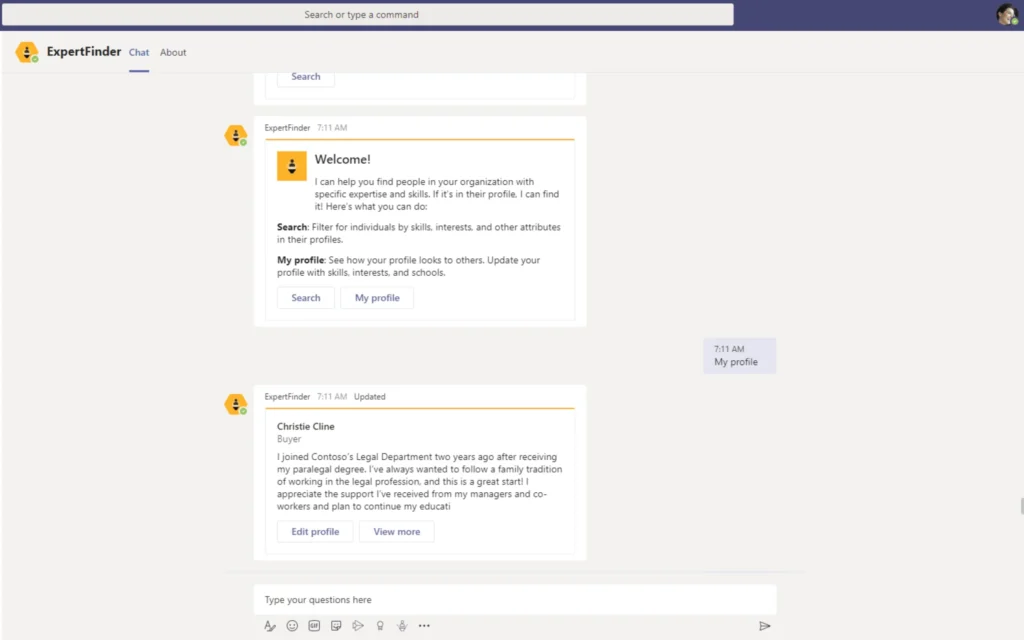
Microsoft Teams app templates are pre-built blueprints for apps within Teams that simplify the development process and provide a head start for various functionalities. These templates cover different scenarios, from employee engagement to task management, and can be easily customized to fit specific needs. They offer a range of complexities, including simple no-code options for those without programming experience and more advanced ones for experienced developers. Along with clear instructions and source code, these templates can be found on GitHub, as shown in the example below:
Getting started with Microsoft Teams app development
Microsoft Teams app development typically starts with Visual Studio Code and Microsoft Teams Toolkit. Together, these tools allow developers to create, test, and deploy custom Teams apps directly within a Microsoft 365 environment.
Setting up Visual Studio Code for development
Visual Studio Code (VS Code), a versatile and customizable code editor, is a popular choice when it comes to building custom solutions in Microsoft Teams. Preparing Visual Studio Code (VS Code) as your development environment for Microsoft Teams customizations involves several key steps.
Exploring Microsoft Teams Toolkit features
Start by installing the essential “Microsoft Teams Toolkit” extension, which integrates Teams-specific tools and functionalities directly into VS Code. This extension also provides project templates and debugging capabilities for Teams applications.
Next, configure the Toolkit and connect it to your Microsoft 365 developer account. This link enables interactions with your Teams environment, including app registration and management within the Teams developer portal. With the toolkit installed and configured, you can create a new Teams project directly from VS Code, choosing from various templates that cater to different app types, such as tabs, bots, or messaging extensions. Alternatively, you can open an existing Teams project in VS Code to modify or extend its functionality.
Customizing apps in Teams
Once you have a basic app, you can customize it in various ways:
Branding. Change the app’s name, icon, color scheme, and other visual elements to adjust your organization’s identity.
Functionality. Add or modify features to align the app with your specific use case.
Data integration. Connect the app to external data sources or Microsoft 365 services (e.g., SharePoint and Planner) through Microsoft Graph.
User experience. Optimize the app’s UI for different screen sizes and devices.
If you’re looking for a low-code/no-code option, Power Apps is a great choice. You can create custom apps with visual drag-and-drop tools and integrate them directly into Teams as tabs. This strategy is especially useful for building forms, workflows, or simple data-driven applications.
For more complex scenarios, teams can build custom Teams apps with your preferred programming languages and frameworks. This approach gives them maximum flexibility but requires more development expertise.
How to build custom functionality in Microsoft Teams
Microsoft Teams provides multiple ways to build custom functionality that supports communication, collaboration, and everyday workflows. Features such as bots, tabs, and message extensions allow organizations to automate tasks, connect external resources, and customize the Teams experience to fit specific business needs. Here are some of the most common ways to extend the platform.
Create bots for Teams communication
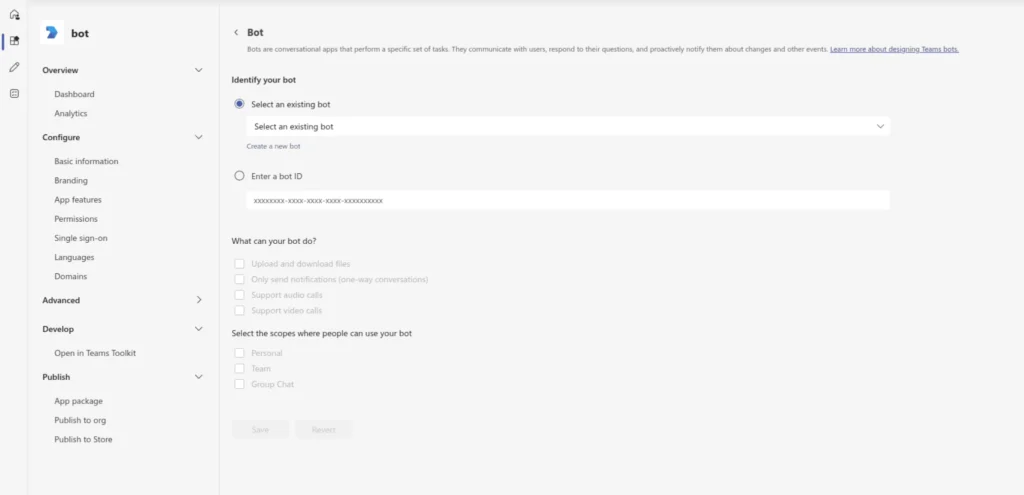
To create a bot in Teams, open the Teams Developer Portal for Teams and create a new Teams app. Then, switch to the “App features” section and select “Bot.” If you don’t have an existing bot, create one in the Bot Framework. Connect your bot to the Teams app by sharing the necessary information, such as the Bot ID and password. Configure your bot’s capabilities and features, like its name, description, and commands it can respond to. Once you’ve completed these steps, you can test your bot in the Teams environment and iterate on its design and functionality until it’s ready for deployment. Finally, package and publish your Teams app.
Although bots are nothing new to the Microsoft 365 suite and Teams in particular, they continue to evolve and offer increasing value. From simple task automation to sophisticated data analysis and integration with third-party systems, their capabilities are expanding rapidly. This evolution is transforming the way teams collaborate and interact.
Implement message extensions to enhance collaboration
Message extensions connect external applications and services directly to Microsoft Teams conversations. This functionality allows users to search, retrieve, and share information without leaving the Teams interface. When a user triggers a message extension (by clicking a button, using a command, or interacting with a message), Teams sends a request to the associated web service or bot. Regardless of the tool, the request is processed, and the response is returned to Teams.
The response typically includes structured data, such as a card with information or action buttons. Teams then displays this card within the conversation and allows users to interact with it directly. Under the hood, message extensions use a web service and an app manifest. There are two ways to build a message extension: with API and Bot Framework.
In the first scenario, the message extension triggers an API call to the external service and passes relevant search parameters or user input. The API processes the request, fetches the data, and returns it to the message extension. The extension then formats the data into an interactive card and displays it within the Teams conversation.
In the second one, when a user interacts with the message extension, a request is sent to the bot. The bot processes the request, potentially interacting with external services, and then sends a response back to Teams. This response could be a card with information, a form to collect input, or a confirmation message for a completed action.
Customize tabs for specific workflows
Tabs in Teams consolidate information within a team’s workspace. They also reduce the need to switch between different solutions and save time for employees. In addition, tabs can integrate with external services such as Azure DevOps, Jira, or internal knowledge base. This capability is beneficial for teams that frequently share and reference external resources.
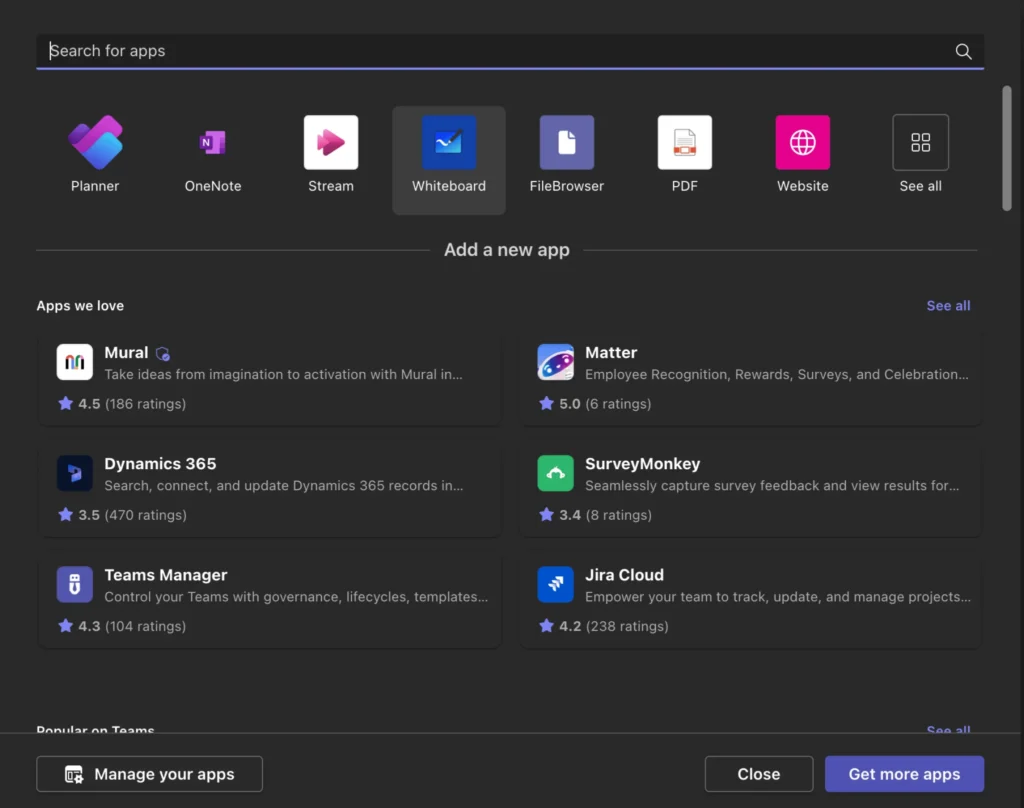
If you want to add a new tab in Teams, navigate to the channel where you want to add it and click on the “+” icon next to the existing tabs. From there, you can choose from a variety of options, including pre-built apps from the Teams app store or custom tabs you create yourself. Once you’ve selected the tab you want, follow the on-screen instructions to configure and add it to your channel.
When it comes to customization, you can either specifically configure pre-built tabs or create custom tabs from scratch through Microsoft Teams Toolkit or any other development way. Custom tabs offer the greatest flexibility as you have complete control over the HTML, CSS, and JavaScript code that powers the tab. You can change the user interface, functionality, and data integration according to the needs of your team.
FAQ
Next steps in Microsoft Teams app development
Microsoft Teams has evolved beyond a communication platform into a foundation for custom workflows, automation, and business applications. As AI capabilities become more deeply integrated into Microsoft 365, Teams apps will continue to unlock new ways to streamline work, connect systems, and support collaboration across organizations.
If you’d like to explore more possibilities of custom Teams development for your organization, reach out to us.





Your business results matter
Achieve them with minimized risk through our bespoke innovation capabilities. Fill in the form below.