




First-party vs. third-party cookies: What’s the difference?


June 3, 2026 11 min read 134 views
They look the same. They act the same. But one quietly makes the web feel like home, while the other powers the personalized ads. First-party vs. third-party cookies are technically about identical files doing very different jobs. With smarter privacy laws, better browsers, and fresh alternatives on the horizon, the internet is heading somewhere more open and user-friendly than ever. Here’s how both cookies and how they differ, how to manage them with confidence, and what this next chapter of digital advertising looks like.
What types of internet cookies are out there?
There are essentially two types of cookies: first-party and third-party. From a technical perspective, there is no real difference between them as they can contain the same information and perform the same functions. Both are supported by all browsers, though how each treat them varies.
However, the distinction between these types of cookies lies in how they are created and subsequently used, which often depends on the context. First-party cookies offer different benefits compared to third-party cookies.
- First-party cookies are stored by the domain (website) you are visiting directly. They allow website owners to collect analytics data, remember language settings, and perform other useful functions that help provide a good user experience.
- Third-party cookies are created by domains other than the one you are visiting directly, hence the name third-party. They are primarily used for cross-site tracking, retargeting, and ad-serving, often by an advertiser seeking to reach users across multiple sites.
In addition to first-party and third-party cookies, there are also second-party cookies, although they are less common. Second-party cookies are cookies that are transferred from one company — the one that created first-party cookies — to another company via some sort of data partnership. For example, an airline could sell its first-party cookies and other first-party data, such as names, email addresses, etc., to a trusted hotel chain for ad targeting, meaning the cookies become classed as second-party.
The difference between first-party and third-party cookies
Technically speaking, first- and third-party cookies are the same type of file. The main difference is how they are created and used by websites. In both cases, cookies are small text files placed on your device when a user visits a website.
What are first-party cookies?
First-party cookies are created by the host domain, the domain the user is visiting. These types help provide a better experience on that site and keep the session active. This means cookies remember your login details, which items you add to shopping carts, and your language preferences. Because they enhance usability, these cookies are generally considered safe and helpful, making the experience smoother and more personalized every time you return.
What are third-party cookies?
Third-party cookies are those created by domains other than the one the user is currently visiting. They are mainly used for tracking and targeted advertising purposes. They also allow website owners to provide certain services, such as live chats.
To illustrate the difference between first-party and third-party cookies, imagine an Internet user accessing a website containing ads.
In addition to the first-party cookie created by the host site, ad.doubleclick.net creates a third-party cookie. The third-party cookie is created because the URL (ad.doubleclick.net) doesn’t match the domain. It is left by a third-party advertising provider, hence the name. These cookies track browsing behavior across many sites, fueling large-scale data collection used to build advertising profiles.
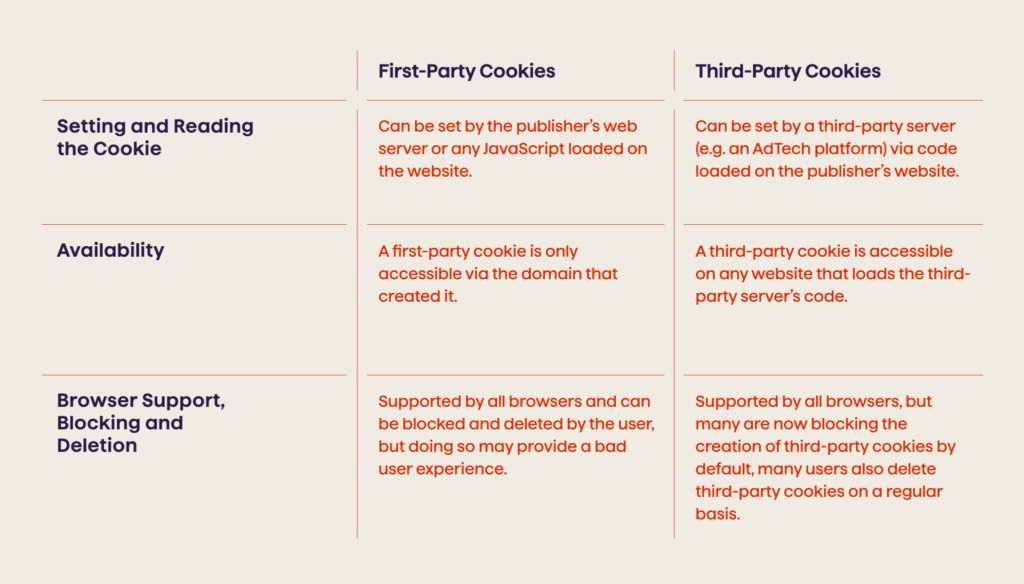
The table below briefly summarizes how first- and third-party cookies differ.
How are third-party cookies created on a website?
A request needs to be sent from the web page to the third party’s server in order for a third-party cookie to be created. This is how third-party cookies are created and placed in the browser without the user actively interacting with the third-party domain.
The file being requested is different depending on the use, but it can be an actual creative (an ad) or a tracking pixel, which is completely invisible to the user but acts as a tracking cookie in situations when there is no click event — for instance, when just a web page is opened — and click redirects cannot be used.
For example, if the third party was an advertising service like DoubleClick by Google, the request would be for a creative – the actual ad the visitor sees. The DoubleClick ad markup can allow a third-party cookie to be placed.
When the web page loads, the above ad markup also loads, and a request is sent to ad.doubleclick.net/the-extension-to-the-creative to retrieve the image and assign a cookie to the user at the same time. Different third parties may request different files from their web servers and send them back to the browser. These persistent cookies can remain active for months, quietly collecting data each time you encounter the same advertising network.
Examples of third-party services that leave cookies
There are a number of third-party service providers that usually leave cookies in a user’s browser. Here are a few of the main ones:
Ad-retargeting services
Ad retargeting involves following website visitors who have previously visited your website around the web and showing them ads for the products or services they’ve viewed or interacted with previously. Many retargeting platforms rely on third-party cookies to function across channels, including social media, display, and email.
Website owners place a 1×1 transparent pixel on their site, which sends a request to the ad-retargeting server when the page loads. The server then returns the requested information (typically containing some JavaScript) to assign a cookie to the user and retarget them later on other websites, where they’ll see ads tailored to their earlier behavior.
Social buttons
Most social media plugins that enable users to log in, share, and like content on third-party websites will place cookies on your device. These cookies enable social platforms to recognize users beyond their own domains.
In this way, the social media sites that these cookies come from can track the sites you visit and send you relevant ads when you go back to these social media sites. Even if you are not signed into your account, these cookies can still follow you by using deterministic matching and sometimes fingerprinting your device to identify you. The user data collected this way often includes browsing habits and engagement patterns.
Live-chat popups
Live chat services leave a cookie in your browser to streamline the user experience.

For example, because the live-chat popup can identify you, the next time you visit the chat box, it will remember your name and the entire conversation history. This login information is stored to make support interactions seamless. Of course, this data is removed if you delete your cookies or when they expire.
It’s important to mention that first-party cookies can also be used for cross-site tracking, but this would require the tracking software (script) to be hosted under the website domain.
How do browsers treat first-party and third-party cookies?
First-party cookies
As mentioned above, first-party cookies are created directly by the website whenever a user visits the site. Generally speaking, most browsers accept first-party cookies by default, as their primary role is to allow customization and improve user experience.
For example, if you visit a site like techcrunch.com, thehuffingtonpost.com or nytimes.com, a cookie will be created and saved to your computer by each site. In each case, these cookies are created and stored locally to support a more tailored browsing session.
The specific site’s cookie will be used to remember user information and their behavior. With first-party cookies, the website decides what information to collect and store, including any personal information the user voluntarily shares, such as account preferences or saved addresses.
Third-party cookies
Third-party cookies (also known as tracking cookies or trackers) are created by parties other than the website the user is visiting.
Consider this example:
When you visit cnn.com and read a few articles, cnn.com will create a first-party cookie and save it to your computer. Because cnn.com (like most other publishers) uses online ads as a way to monetize its content, the ads you see on cnn.com will also create a cookie (e.g., in ads.somedsp.com domain) and save it to your computer. These cookies are not created by cnn.com, so they are classified as third-party cookies.
A website can use third-party cookies from various trackers to collect user information. This information can include data such as the user’s interactions with the site, location, and device type, which is passed on from the website. Such personal data plays a key role in shaping the ads users encounter elsewhere online.
Third-party trackers can also track a user’s behavior, such as the content they view on that website and the things they click on (e.g., products and ads). The trackers create third-party cookies and use them to display targeted ads to the user when they visit different websites.
For example, if a user visits bestbuy.comand clicks on a product, third-party trackers will collect and analyze the information about that user and their activity on bestbuy.com. Then, if that user leaves bestbuy.com and accesses a different website, such as techcrunch.com, the user could be shown an ad for that exact same product or something similar. The way the data is used here highlights why using cookies has become both a powerful and controversial practice. The way it works is that both bestbuy.com and techcrunch.com load a piece of code from an ad server (e.g., ad.doubleclick.net).
When the user navigates to either website, the piece of code loaded from ad.doubleclick.net is from a different domain than the URL in the user’s browser, so the cookies set in ad.doubleclick.net are considered third-party cookies, which is exactly why many modern browsers now block third-party cookies by default.
First-party cookies used in a third-party context
Some first-party cookies can be used to track users in the same way as third-party cookies in specific contexts.
For example, log-in boxes (widgets, plugins) to social sites like Facebook can be placed on different websites to facilitate commenting or “liking” content. This functionality uses first-party cookies in the third-party context; because the user interacts with the login widget (as in, visits its domain), the widget can leave a first-party cookie. As these cookies are stored on your device and used in a third-party context, they can enable cross-site tracking. Users who want to manage cookies more carefully can adjust browser settings or block cookies entirely for specific domains.
FAQ
The future of first-party and third-party cookies
The third-party cookie’s slow exit has reshaped the industry more than its actual deprecation ever could. Even with Google’s Chrome reversal on its plans to phase out third-party cookies, Safari and Firefox still block by default, regulators keep raising the consent bar, and users expect real control over their data, so the strategic value of the cookie is already gone. The broader push to phase out third-party cookies continues to play a crucial role in reshaping how brands connect with audiences.
What’s working now is a diversified stack: durable first-party data built on genuine value exchanges, clean rooms like Google Ads Data Hub and AWS Clean Rooms for privacy-safe collaboration, authenticated IDs like UID2 holding ground in CTV and logged-in environments, a real contextual targeting renaissance powered by better NLP, and selective use of Privacy Sandbox APIs as one signal among many.
Even without third-party cookies, brands can still deliver relevant, measurable experiences, provided they invest in the right infrastructure and consent-first strategies. While first-party cookies allow websites to deepen direct relationships with their users, the most resilient strategies now combine consent, context, and creative measurement.
Take the next step toward a future-ready AdTech strategy built on trust and measurable impact. Contact Avenga.

What’s the difference between AdTech vs MarTech?

What is programmatic audio and how does it work?

Top demand side platform (DSPs) companies for your business
Your business results matter
Achieve them with minimized risk through our bespoke innovation capabilities. Fill in the form below.